The internet is useful for learning, communication, shopping, entertainment, and work. Millions of people use the internet daily. Browsing online can be fun and helpful. The internet also has risks. Scammers, viruses, malware, fake websites, and unsafe downloads can harm devices and steal personal information. Safe browsing protects privacy, money, and devices. This guide explains how to browse the internet safely in 2026.
1. Use Trusted Browsers
Browsers are the main tool for internet access. Trusted browsers like Chrome, Firefox, Edge, and Safari are safer. Trusted browsers get regular updates. Updates fix security flaws and prevent hackers from accessing information. Using official browsers reduces risks of unsafe websites.
2. Keep Software Updated
Browsers, operating systems, and apps must be updated regularly. Updates fix security issues and improve protection against malware. Outdated software is vulnerable to hacking. Enable automatic updates when possible. Updated devices provide safer browsing.
3. Use Strong and Unique Passwords
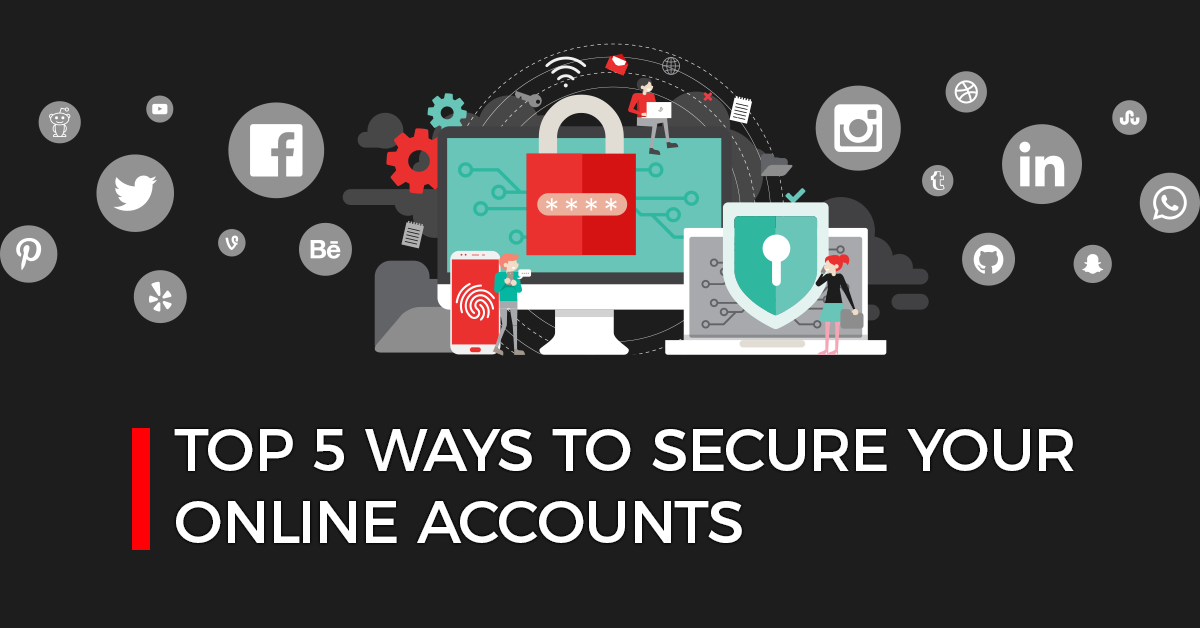
Many websites require accounts and passwords. Weak passwords are easy to hack. Use strong passwords with letters, numbers, and symbols. Each website should have a unique password. Strong passwords protect accounts from hacking attempts. Avoid saving passwords on public computers.
4. Enable Two-Factor Authentication
Two-factor authentication (2FA) adds extra security. Accounts need a password and a code sent to phone, email, or app. Even if a hacker steals the password, they cannot access the account without the code. Enable 2FA for email, social media, and banking accounts.
5. Check Website Security
Before entering personal information, check if the website is secure. Look for “https://” in the web address and a lock icon. Secure websites encrypt data. Unsafe websites may steal passwords or credit card details. Avoid entering information on unsecure sites.
6. Avoid Suspicious Links and Ads
Scammers use links and ads to trick users. Clicking unknown links may install malware or steal information. Avoid pop-up ads and messages offering free prizes or downloads. Only click links from trusted sources. Hover over links to see the actual URL before clicking.
7. Use Antivirus and Security Software
Antivirus programs protect devices from viruses, malware, and phishing. Install trusted antivirus software on phones, tablets, and computers. Enable real-time scanning and automatic updates. Security software helps detect and block harmful websites and downloads.
8. Use a VPN on Public Wi-Fi
Public Wi-Fi is convenient but risky. Hackers can intercept data on shared networks. Use a VPN (Virtual Private Network) to encrypt data. VPN protects passwords, messages, and browsing activity. Avoid logging into important accounts on public Wi-Fi without VPN.
9. Limit Personal Information Sharing
Do not share personal information carelessly. Avoid posting passwords, bank details, phone numbers, or home address online. Social media and forums are public spaces. Hackers can collect personal information from posts. Keep sensitive information private.
10. Be Careful with Downloads
Downloading files, apps, or videos from unknown sources is risky. Malware or viruses may be hidden in downloads. Only download apps from official stores like Google Play or App Store. Scan downloaded files with antivirus software. Avoid pirated content.
11. Use Ad Blockers and Pop-Up Blockers
Ads and pop-ups can contain malicious links. Use ad blockers in browsers to block unsafe ads. Pop-up blockers prevent unwanted windows from opening. Blocking ads reduces the chance of accidentally clicking harmful content.
12. Monitor Account Activity
Check online account activity regularly. Many websites show login history and devices used. Unknown logins may indicate hacking attempts. Change passwords immediately if suspicious activity appears. Early detection prevents serious account theft.
13. Educate Yourself About Scams
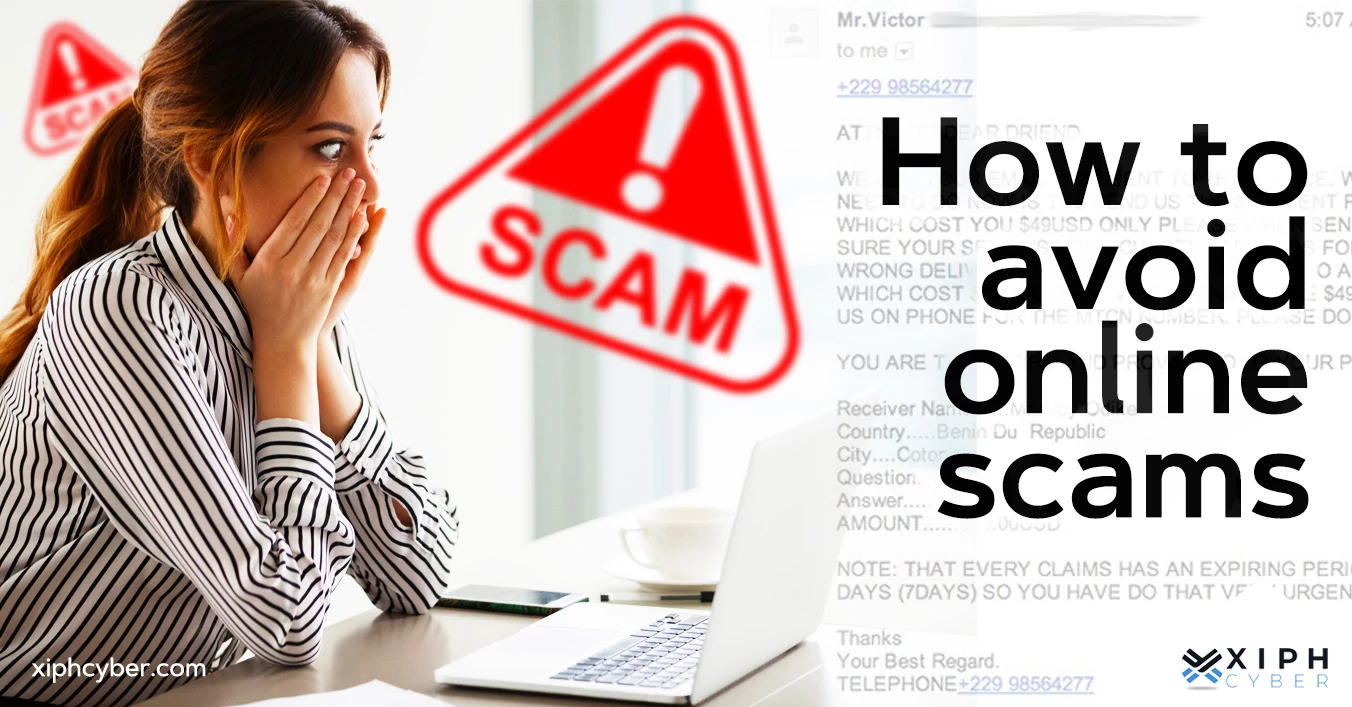
Know about common online scams like phishing, fake shopping sites, lottery scams, and romance scams. Awareness helps avoid falling for scams. Learn signs of fake emails, links, and messages. Teaching friends and family also helps keep others safe.
14. Use Privacy Settings
Social media platforms, browsers, and apps have privacy settings. Limit who can see posts, location, and personal information. Adjust settings to share only with trusted people. Strong privacy settings reduce identity theft and misuse of data.
15. Enable Safe Search Options
Search engines offer safe search settings to filter inappropriate or unsafe content. Enable these settings, especially for children and teenagers. Safe search reduces exposure to harmful or explicit content online.
16. Avoid Clicking Unknown Email Attachments
Emails from unknown senders may contain viruses or malware. Do not open attachments or click links in suspicious emails. Hackers can steal data or take control of devices through email attachments. Verify email sender before opening attachments.
17. Backup Important Data
Regularly backup important files, photos, and documents. Cloud storage or external drives can be used for backup. Backups protect data in case of hacking, virus attacks, or device failure. Safe browsing includes saving information securely.
18. Set Up Parental Controls (For Teens and Kids)
Parents can set up parental controls on devices. Controls limit access to unsafe websites. They monitor internet activity and set time limits. Parental controls help children browse safely and learn responsible internet habits.
19. Avoid Oversharing on Social Media
Many hackers collect information from social media posts. Avoid sharing travel plans, passwords, or other sensitive details publicly. Share only necessary information with trusted people. Oversharing increases risk of identity theft.
20. Stay Calm and Verify Before Acting
Scammers often create urgency in emails or messages. Messages may say “account will be closed” or “claim prize now.” Do not act quickly. Verify messages by visiting official websites or contacting customer support. Patience prevents mistakes.
Conclusion
Safe internet browsing is essential in 2026. Using trusted browsers, strong passwords, two-factor authentication, and secure websites protects personal information. Avoid suspicious links, downloads, and pop-ups. Antivirus, VPN, and security software reduce risks. Awareness of scams, monitoring accounts, and privacy settings increase safety. Backing up data and using parental controls also protect devices and information. Following these steps ensures safe, productive, and enjoyable internet use. Safe browsing protects personal information, prevents hacking, and keeps devices working smoothly.